











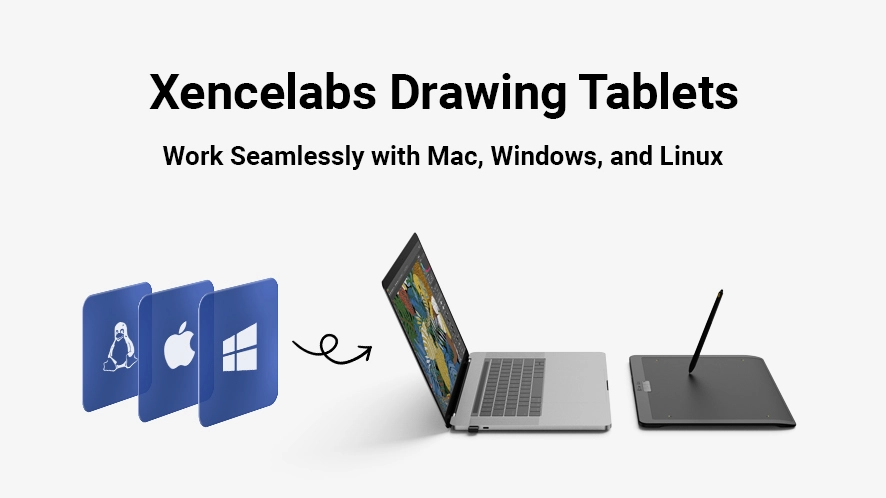
When you're searching for a drawing tablet that works with Mac, Windows, or Linux, it's easy to focus only on hardware specs. But the real question is: will the tablet work seamlessly with your system?
If the driver doesn't support your operating system or processor, even the best tablet can become an expensive paperweight.
Whether you're working on a legacy Windows 7 workstation, a new M-series MacBook Pro, or a custom Linux setup, you deserve a tool that integrates smoothly into your workflow.
At Xencelabs, we know creators often have very specific questions before investing in new hardware. Many artists and studios ask us things like:
• Is Xencelabs compatible with macOS Sonoma, Sequoia, or Tahoe?
• Does it run natively on Apple Silicon (M1, M2, M3, or M4)?
• Does it support Windows 11 and Windows 11 ARM?
• Will it work reliably with professional tools like the Adobe Suite of applications, Clip Studio Paint, Autodesk Maya, ZBrush, or Toon Boom?
Below you'll find a clear breakdown of how Xencelabs drivers support the major operating systems. This allows you to confidently purchase an Xencelabs device, knowing it will meet your demanding workflow needs in your environment.
OS Compatibility at a Glance
| Operating System | Supported Versions | Key Benefit |
|---|---|---|
| Windows | Windows 7 (SP1) / 10 / 11 (64-bit) | Native Windows 11 ARM support |
| macOS | 10.13 and newer (Ventura, Sonoma, Sequoia, and Tahoe) | Native Apple Silicon support (M1–M4) |
| Linux | 15+ major distributions | Standard X11 compatibility |
Choosing creative hardware is a long-term investment. Whether you're an independent artist, studio team, or educator, your tools should stay out of the way so you can focus on creating.
Xencelabs drivers are designed to provide reliable performance, consistent updates, and stability across operating systems.
Xencelabs Driver for Mac: Built for Apple Silicon
If you use macOS, Xencelabs provides a lightweight driver that supports macOS 10.13 and later, including Ventura, Sonoma, Sequoia, and Tahoe.
1. Native Apple Silicon Performance
Our driver runs natively on M-series chips (M1–M5). This means your tablet responds instantly without relying on Rosetta translation layers.
The result is lower latency and smoother pen response, even during intensive creative work.
2. Application-Specific Profiles
You can create up to 49 custom application profiles.
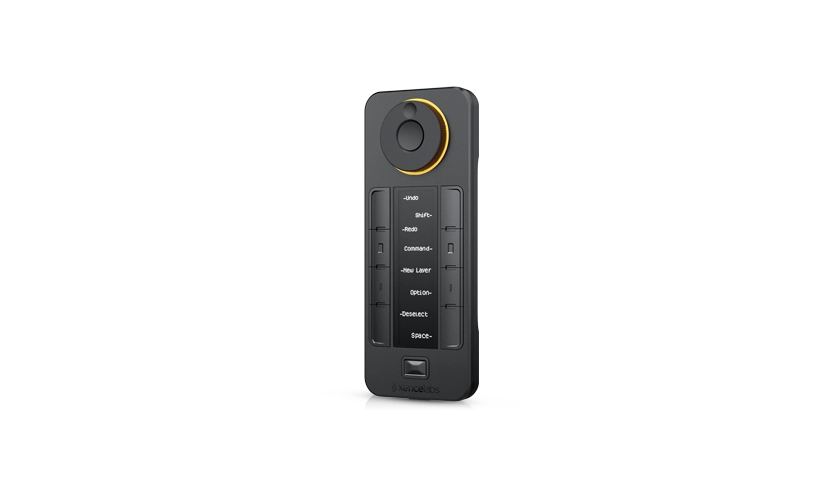
When you switch from Photoshop to Final Cut Pro, your pen settings and Quick Keys automatically adjust to match the software you're using.
3. Simple Installation
We provide a clear step-by-step guide to help you install the driver and configure macOS permissions, such as:
• Accessibility
• Input Monitoring
This ensures everything works correctly from the start.
Xencelabs Driver for Windows:
Xencelabs drivers support Windows 7 (SP1), Windows 10, and Windows 11, including modern ARM-based systems.
1. Native Windows 11 ARM 64 Integration
Xencelabs was among the first Pen Tablet manufacturers to offer native Windows 11 ARM 64 driver support.
If you're using devices such as:
• Surface Pro ARM systems
• Snapdragon-powered laptops
The driver runs directly on the architecture instead of relying on emulation. This means less lag and quicker application response times.
2. Lower Latency and Better Battery Life
Native ARM support reduces extra processing overhead. This helps deliver:
• Smoother drawing performance
• Lower latency
• Improved laptop battery life
3. Full Feature Support Across Devices
Whether you're using:
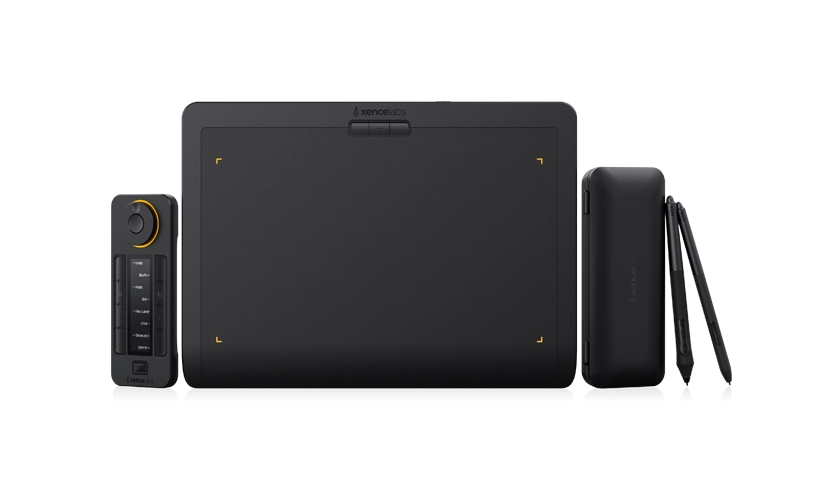
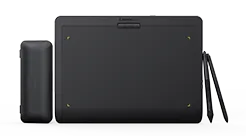
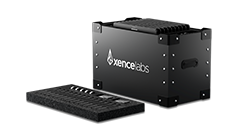
• Pen Tablet Medium Bundle / Special Edition
• Pen Tablet Medium
• Pen Tablet Small
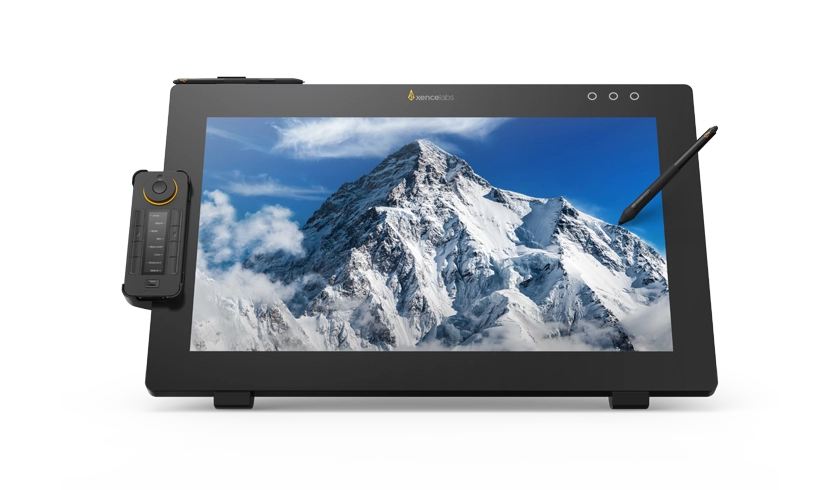
• Pen Display 16
• Pen Display 24 and the Pen Display 24+
You receive consistent customization, pressure sensitivity, and stability across all supported platforms.
Xencelabs Driver for Linux: Designed for Professional Pipelines
Many 3D artists, VFX studios, and animation teams rely on Linux-based pipelines. Because Linux distributions vary widely, we maintain a continuously updated list of tested Linux distributions to help you verify compatibility.
View the full list of supported Linux distributions
If your distribution isn't listed, there's still a good chance the tablet will work using standard Linux input support. Simply connect the device and test functionality with your setup.
Why Creative Professionals Choose Xencelabs Drivers
1. Compatible with Other Tablet Drivers
Our Xencelabs driver will work alongside other drivers, such as Wacom and XP-Pen, harmoniously.
Our drivers are designed to coexist with most other tablet drivers without causing system conflicts.
Helpful tip:
If you plan to switch completely to Xencelabs, uninstalling previous drivers and restarting your system can help ensure a clean installation.
2. Optimized for Popular Creative Software
The driver includes pre-configured shortcuts and profiles for many professional creative applications, including:
• Adobe Photoshop
• Adobe Illustrator
• Maya
• ZBrush
• Substance Painter
• Toon Boom Harmony
• Storyboard Pro
• Corel Painter
• Clip Studio Paint
This helps you get started faster with tools already tailored to common workflows.
3. Seamless Virtual Machine Support (Parallels)
If you're running Windows within macOS using Parallels, Xencelabs drivers are verified to work with: macOS 14.5+ | Windows 11 in Parallels
Unlock full tablet functionality even in a virtual environment with Xencelabs drivers optimized for Parallels, including support for:
• Pen pressure
• Custom button assignments
• Quick Keys shortcuts
Many professionals successfully run high-demand creative tools within their Windows VM, such as:
• Adobe Photoshop, Lightroom, and Illustrator
• Clip Studio Paint
• ZBrush
• Rebelle 8
Helpful tip:
For the best performance and accuracy, install the Windows version of the Xencelabs driver directly inside the Windows virtual machine, in addition to your macOS installation.
What to Check Before Installing a Xencelabs Driver
Before purchasing an Xencelabs tablet or display, it helps to confirm a few system details.
1. Your Operating System
Xencelabs Driver Support: macOS 10.13 and newer | Windows 7 (SP1), 10, and 11
2. Your Processor Platform
Supported platforms include:
• Intel
• AMD
• Apple Silicon (M-series)
• Windows ARM systems
3. Driver Updates
You can always check the latest driver release notes in the Xencelabs Download Center to see recent fixes and improvements for your operating system.
Frequently Asked Questions
Can I install the Xencelabs driver over an older version?
Yes. Both Windows and macOS drivers support over-installation.
We recommend exporting your preferences first so your custom shortcuts remain intact after the update.
Do I need internet access to install the driver?
Yes, you need internet access to download the driver file. After downloading, the installer does not require internet access to install successfully.
How many custom app profiles can I create?
You can create up to 49 application-specific profiles, plus one global default profile.
Does the Xencelabs driver work with HP Anyware?
Yes. Xencelabs supports HP Anyware on Windows systems when using driver version 1.3.5-90 or newer.
This compatibility applies to:
You can identify V2 models by the yellow logo on the eraser end of the pen.
Can I connect an Xencelabs tablet to an iOS device?
No. Xencelabs drivers currently do not support Apple iOS devices.
Experience the Xencelabs Difference
When your tools work seamlessly with your system, you can focus entirely on creating.
Xencelabs tablets and drivers are built to provide reliable compatibility, smooth performance, keeping you focused on creating.
Explore Xencelabs Pen Tablets and Pen Displays
If you have questions about your specific hardware setup, our support team is here to help: