











A new semester often means new tools, new projects. For digital art students, choosing an affordable graphics tablet is not just about finding the cheapest option; it's about finding a device that is affordable while still supporting both school assignments and personal creations throughout their college years.
As digital art projects become more complex and diverse, adjustable pressure sensitivity, efficient customizable shortcuts, and a stable workflow can help students create more smoothly and stay focused on their work.
In this guide, we'll explore what students should look for when choosing the best inexpensive graphics tablet.
Before buying their first professional drawing tablet, many students may have a question: is drawing tablet better than ipad? Both devices can help you create art digitally, but they are different in how well they work, how precise they are, and how they function overall.
What Should Digital Art Students Look for in a Drawing Tablet?

1. OS Compatibility and Drawing Software
Most graphics tablets on the market need to connect to a computer, so it is important to check whether the device supports your current operating system.
A reliable drawing tablet should also work well with popular applications, including:
• Adobe Photoshop
• Adobe Illustrator
• Clip Studio Paint
• Blender
• ZBrush
• Autodesk Maya
• Substance 3D Painter
• Other digital art and design software
2. Active Area
A larger graphics tablet does provide more room for detailed sketching, refining, and rendering. However, it also takes up more desk space and may be over budget for some students.
Most students use their graphics tablets in different environments, such as dorm room desks, classrooms, studios, or home workspaces. So, a larger graphics tablet may not be the top priority for students. A portable graphics tablet with enough drawing space may suit their needs better. It can easily fit into a backpack and be carried between classes, studios, or home workspaces.
3. Pen Pressure Sensitivity and Drawing Accuracy
Pressure sensitivity directly affects how naturally you can draw.
During the creative process, it's common to switch between light sketches and bold strokes. A stylus with adjustable pressure sensitivity allows you to control line thickness and opacity more naturally, creating a smoother and more intuitive drawing experience.
4. Connection Options
If students need to take their graphics tablets between classrooms and dorm rooms, portability becomes an important factor. A wireless connection can provide extra flexibility, while a wired connection offers a reliable and stable workflow.
5. Product Quality and Long-Term Support
A graphics tablet is an investment that students may use throughout their entire education.
Instead of choosing a cheap graphics tablet that may need replacement quickly, it is often better to choose a reliable device with professional build quality and long-term support.
A trusted graphics tablet brand should continue improving its drivers as operating systems evolve. Regular driver updates help identify and fix compatibility issues or potential bugs, ensuring a more stable drawing experience. In addition, responsive customer support can help solve technical problems quickly, so unexpected issues don't interrupt your creative workflow.
Why Art and Design Schools Trust Xencelabs and Students Choose the Pen Tablet Small
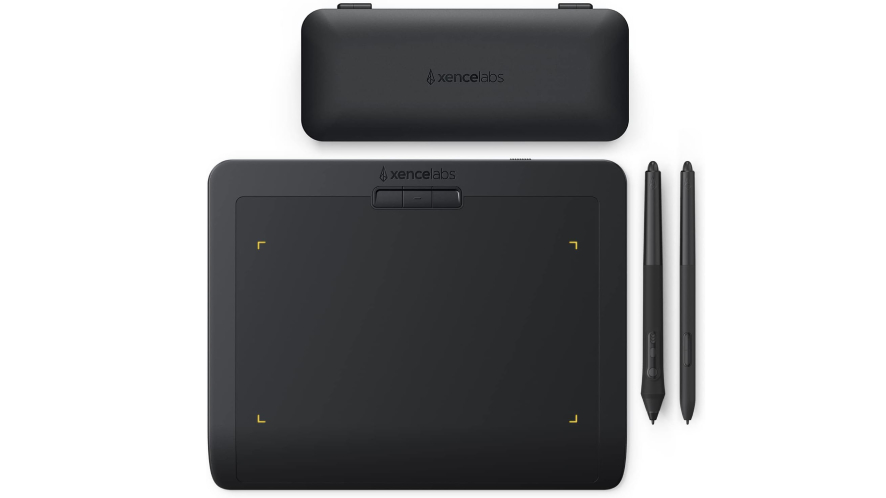
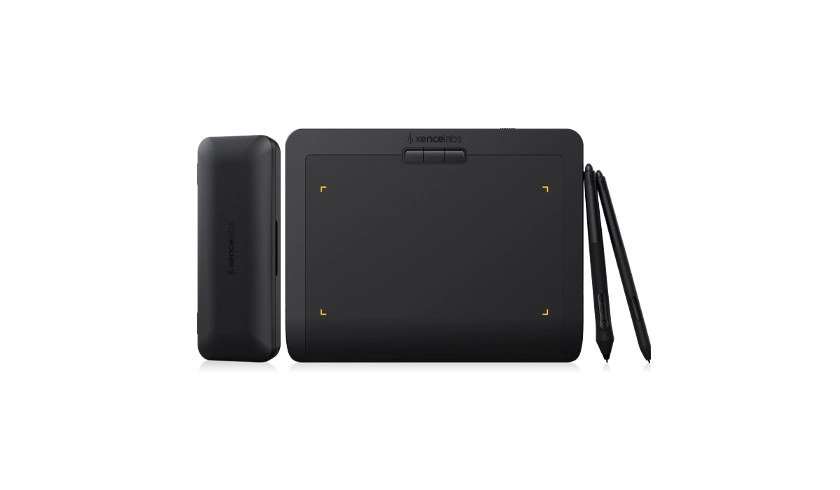
Professional features don't always have to come with a high price tag. Xencelabs Pen Tablet Small is an affordable graphics tablet option under $100 that gives students professional pen technology without exceeding a student budget.
1. Work with Mac, Windows, or Linux
At Xencelabs, we know creators often have very specific questions. Many artists and studios ask us things like:
• Is Xencelabs compatible with macOS Sonoma, Sequoia, or Tahoe?
• Will it work reliably with professional tools like the Adobe Suite of applications, Clip Studio Paint, Autodesk Maya, or ZBrush?
We've created detailed compatibility guides to help creators understand how Xencelabs works with their favorite software and operating systems.
2. Compact Size and appropriate active area designed for Student Life
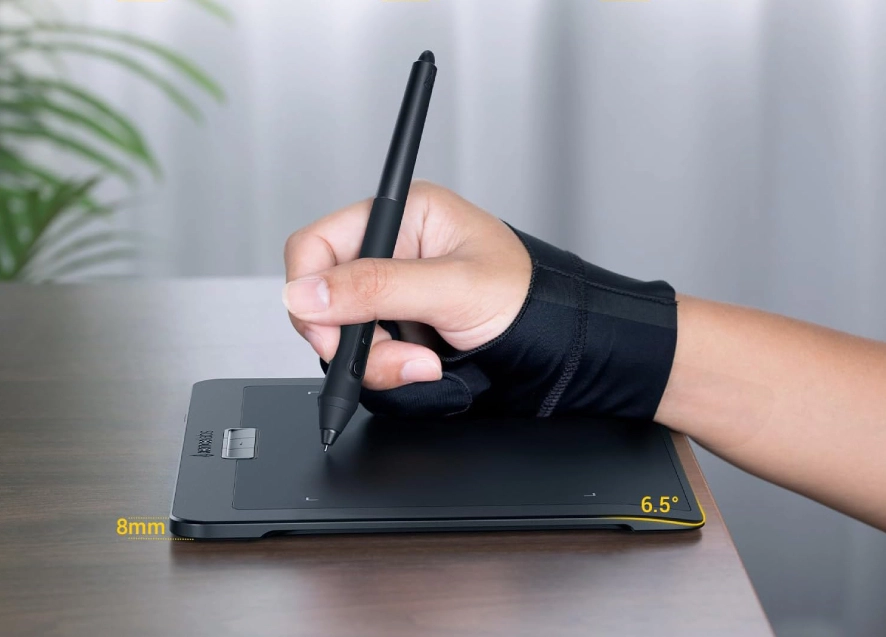
Xencelabs Pen Tablet Small active area is 176.10 x 99.05mm(6.93 x 3.89 in), larger than Wacom Intuo Small. Sleek 8mm thickness is easy to carry between classrooms, libraries, and personal studios.
For students with limited desk space, it provides a comfortable creative setup without taking over the workspace.
3. Professional Drawing Experience
A comfortable drawing experience starts with the right tools.
Xencelabs Pen Tablet includes two cordless, battery-free stylus pens — a 3-button pen and a thin pen — plus 10 replacement nibs, giving creators more flexibility to choose the setup that best fits their workflow. Both pens also include built-in erasers so you can erase unwanted pixels, like using a real pencil.
With 8192 levels of pressure sensitivity and ±60° tilt support, every line responds accurately to your movements, whether you are sketching, shading, or adding fine details.
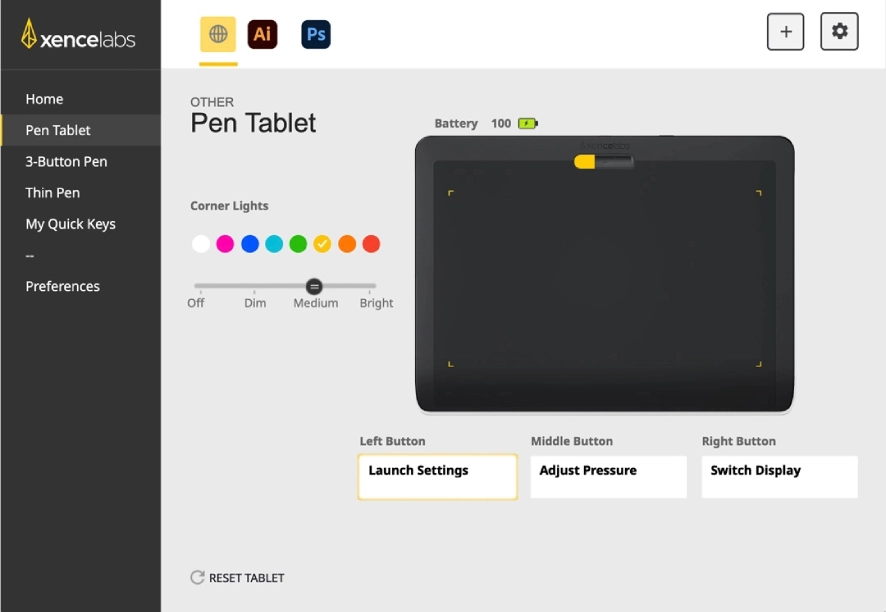
The intuitive driver interface makes it quick and easy to adjust pen settings, including pressure sensitivity, to match your drawing style.
Every detail is designed with creators' needs in mind. The ergonomic design provides a comfortable and natural grip, helping you stay comfortable during long creative sessions compared with using a traditional mouse.
4. A Professional Tool for Every Stage of Learning
For many art students, a drawing tablet is more than just a tool for completing school assignments. It becomes part of their creative journey — from practicing new skills in class to creating personal projects, taking on freelance work, or building a professional portfolio after graduation.
The Xencelabs Pen Tablet Small is designed to support every stage of that journey. It offers a compact and affordable option for students while delivering the professional features that creators rely on for illustration, animation, gaming, film, and 3D workflows.
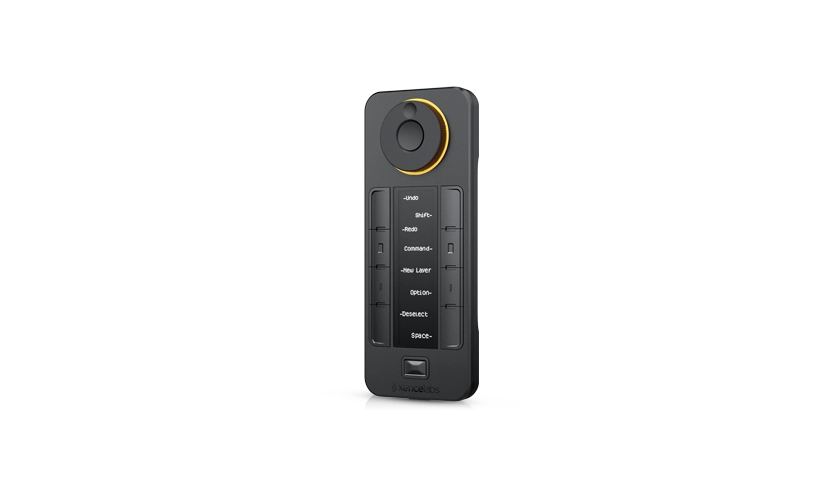
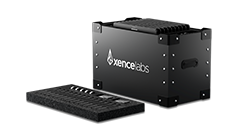
The Pen Tablet Small includes everything students need to start creating right away. As your skills grow and your creative needs change, you can further expand your setup with accessories such as the Xencelabs Accessory Kit, giving you more ways to customize your workspace for different creative workflows.
Still deciding if it's the right fit
See how other artists use the Xencelabs Pen Tablet Small in their everyday creative process through unboxing videos and hands-on reviews.
Real Customer reviews on Amazon:
1. I use the 3 button pen more often and I replaced the tip of the slim pen with a felt tip for when I'm doing more detailed work. I like using the slim for writing notes and the thick one for drawing. The soft case is also nice because it protects from scratches during travel and the front pocket fits the pen case and remote. BTW I am using windows so idk how it is with mac or linux.
2. Bottom line: this is a great tablet at a great price. The software is really top-notch—most tablets have bloated or flaky drivers and software.
Frequently Asked Questions
What is the best budget Bluetooth drawing tablet?
The Xencelabs Pen Tablet Small is one of the best budget Bluetooth drawing tablets in the Xencelabs pen tablet lineup.
What's in the box?
① Xencelabs Pen Tablet Small
② 3 Button Pen
③ Thin Pen
④ 6 Standard Nibs
⑤ 4 Felt Nibs
⑥ Nib Extracting Ring
⑦ Pen Case
⑧ Wireless Dongle
⑨ USB Cable
⑩ USB-A to USB-C Adapter
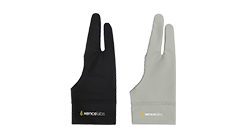
⑪ Medium Glove
⑫ Carrying Case
⭐ Back-to-school season is coming.
Check out the discounted price and shop now.
What is the best inexpensive graphics tablet under $100 for art students?
For students looking for a compact and affordable option, the Xencelabs Pen Tablet Small is one of the strongest choices because it combines a small design with professional pen technology.
What is the lifespan of a drawing tablet?
A quality drawing tablet usually lasts around 8–10 years or longer, depending on usage, maintenance, and build quality.
Professional-grade tablets with reliable drivers and durable materials can often continue supporting creative workflows beyond that period.
Is the Xencelabs Pen Tablet Small wireless?
Yes. The Xencelabs Pen Tablet Small supports wireless connection, allowing students to create without being limited by cables.
Can you use Xencelabs without Bluetooth?
Yes. Xencelabs tablets can also be used through a wired USB connection.
Is a Xencelabs tablet better than an iPad for art?
It depends on your workflow. An iPad is convenient for mobile sketching, while a professional pen tablet provides better integration with desktop creative software used in many schools and studios.
Which Xencelabs tablet is best for beginners?
The Xencelabs Pen Tablet Small is an excellent choice for beginners because it is affordable, portable, and includes professional drawing features that support future growth.
Can you use Xencelabs Pen Tablet Small without a pen?
No. The tablet requires its compatible digital pen to create input.
At Xencelabs, we believe the best creative tools come from understanding artists themselves. Born from artist insights and refined through professional feedback, our products are designed to provide the comfort, precision, and control creators need at every stage of their workflow.
Xencelabs is trusted by artists, educators, and creative teams worldwide. Beyond developing professional creative tools, Xencelabs actively supports the digital art community through partnerships, sponsorships and collaborations. From industry events to renowned competitions such as the RenderMan Art Challenge, Xencelabs works alongside creators who continue to push the boundaries of digital art.