Welcome to the Xencelabs website
Select country or region to browse the content that applies to your location.
 Select country




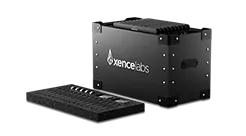
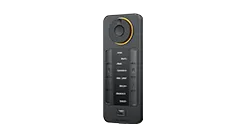
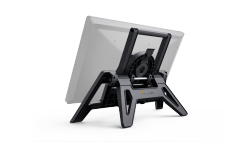
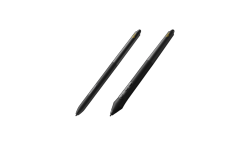

recommend
- Pen Display 24
- Pen Tablet Medium
Welcome to the Xencelabs website
Select country or region to browse the content that applies to your location.
Xencelabs Hub
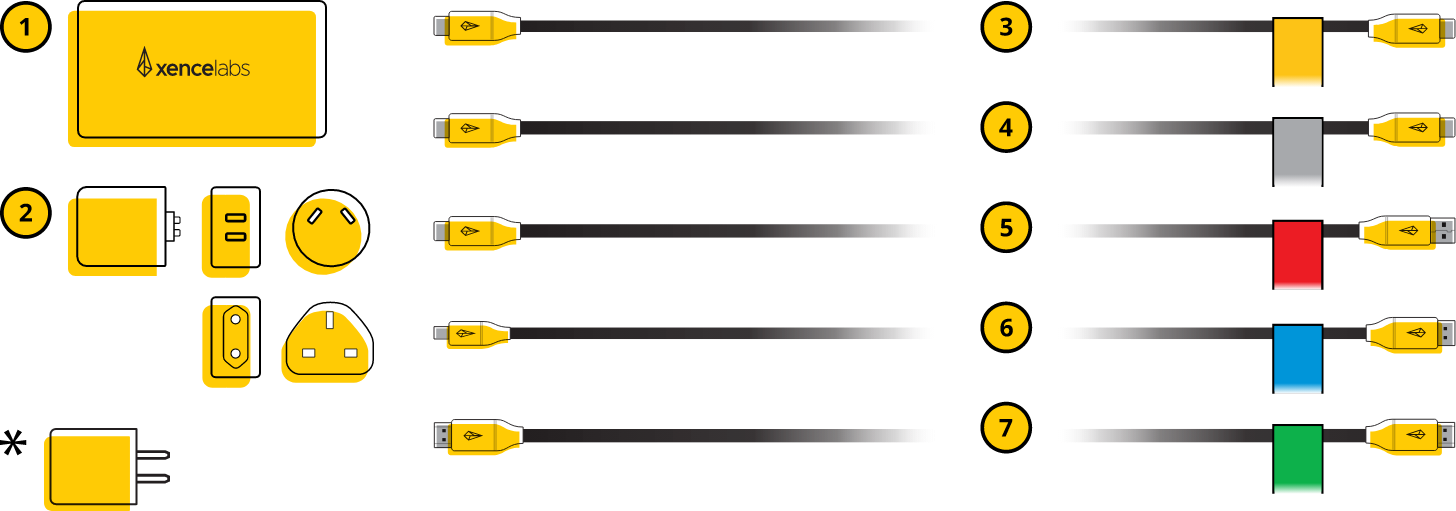
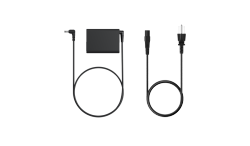
Power Adapter and 4 Regional Power Connectors (US, UK, EU, AUS)
Integrated Power Adapter(China Only)
2.0m Power USB-C to USB-C Cable, Thin (yellow cable tie)
1.2m USB-C to USB-C Cable (gray cable tie)
1.2m USB-C to USB-A 3.0 (Standard) Cable (red cable tie)
1.2m Mini DisplayPort to DisplayPort Cable (blue cable tie)
1.2m HDMI 2.0 to HDMI 2.0 Cable (green cable tie)
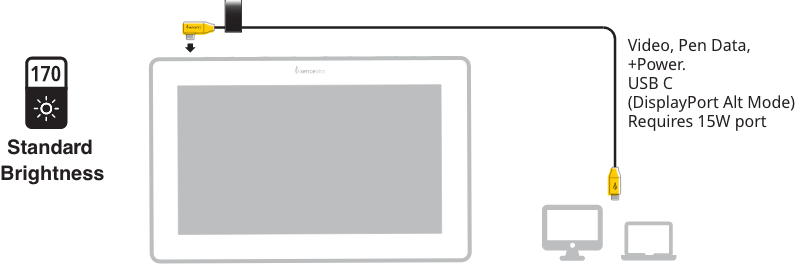
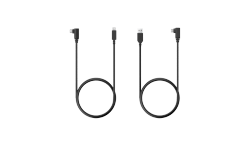
For easy portability and a slim profile the Pen Display 16 has just one USB-C port. You can connect via a single cable if your computer has a USB-C port that is DP Alt-enabled. To do so, use the USB-C cable labeled with a black cable tie (this cable came with your Pen Display). This connection will provide a minimum standard level of screen brightness (170 cd/m²).
We say minimum because if your computer outputs more than the required 15W for the USB-C spec, then you may be able to achieve much higher screen brightness with just this cable.
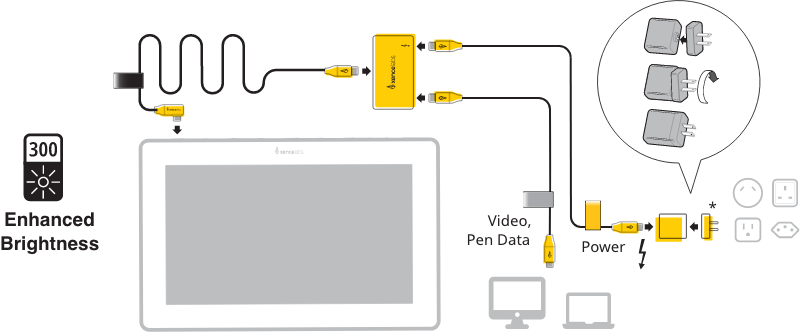
For maximum brightness (300 cd/m²) use the display with the Xencelabs Hub, which provides additional power. First, connect your pen display to the Hub using the cable that came with your pen display (it's labeled with a black tie). Next, connect the Hub to an outlet using the power cable labeled in yellow, Note this cable must first be inserted into the power adapter fitted with your regional power connector (see bubble diagram below). Lastly, connect the Hub to your computer. To do this, there are three possible cable combinations.
If your computer has a USB-C port, you can simply use the gray USB-C cable (as shown below).
* Users in China will receive an integrated power adapter that does not require attaching a regional connector.
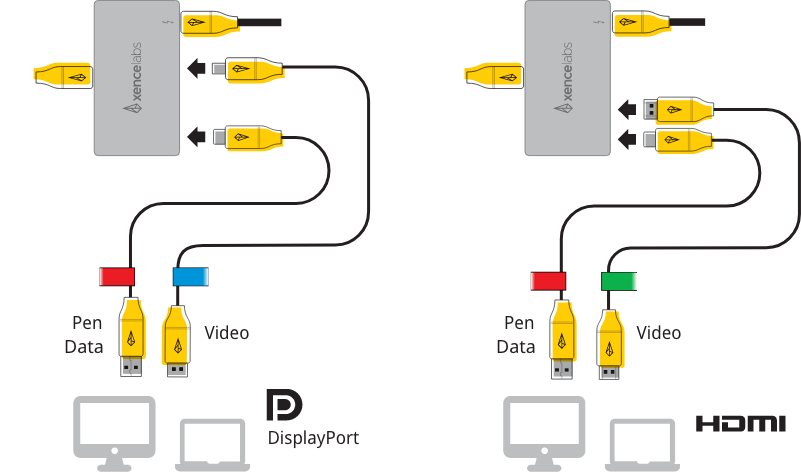
If your computer only has a USB-A port, use the red USB-A cable in combination with either the blue DisplayPort cable or the green HDMI cable.
Do not use the blue DisplayPort, green HDMI, or gray USB-C cables together. This may cause a duplication of the video data to be sent to your computer, making your OS think you have multiple pen displays attached.
The black and gray USB-C cables included with your devices are special USB-C DP Alt cables that send both video and data to the computer. Regular USB-C cables only pass data, and not video. Use our cables ONLY for proper functionality.
Your pen display is working properly when your cursor follows your pen movement.
If you would like to work with Customer Care, please send an email to CustomerCare@Xencelabs.com
What is in the Box
Connecting the Pen Display 16
using the single cable connection
Connecting the Pen Display 16
using the Hub
Register Your New Product
© 2026 Xencelabs Technologies Ltd. All Rights Reserved.